Stop googling. Start asking.
The Problem With How We Learn to Debug
You are three hours into a bug. You have read five Stack Overflow threads, two GitHub issues and a 2019 blog post that almost answers your question. The answers are close but not quite right because they do not know your code, your setup or what you are trying to do.
This is the standard developer experience. FocusCloud was built to change it.
What “Chatting With Your Code” Actually Means
When you open the AI Assistant in FocusCloud and ask a question, something different happens compared to asking ChatGPT or Copilot.
The AI does not just answer based on general knowledge. It reads your actual files first.
It knows:
- What your database schema looks like
- What routes your Express server has
- What components your React frontend renders
- What environment variables you have configured
- What errors your app is throwing
So when you ask “why is my login not working”, the AI is not guessing. It has read your auth.js, your schema.ts, your login form in App.tsx and it knows exactly what is happening. That is the difference between a general AI assistant and one that understands your specific project.
How to Use the AI Chat
Opening the Assistant
- Open any project in the FocusCloud IDE
- Click the AI Assistant tab at the top
- Make sure Chat is selected (not Vibe)
- The text box at the bottom says “Ask about your code…”
You are now talking directly to an AI that has read your project.
What You Can Ask
Explain code
“Explain what this route does” “What does the schema.ts file define?” “Walk me through how authentication works in this app”
The AI reads the relevant files and explains them in plain English. No jargon unless you want it. Useful for onboarding new team members or understanding code you did not write.
Debug problems
“My API is returning 500 errors on the /api/users route” “The form is submitting but nothing is saving to the database” “Users are getting logged out randomly”
The AI checks your route handlers, database schema, middleware and frontend code to find the issue. It explains what is wrong and shows you exactly how to fix it.
Write new code
“Write a function that sends a welcome email when a user registers” “Add a search feature to the products table” “Create a route that returns all orders from the last 30 days”
The AI writes the code in your actual file structure, using your existing imports, naming conventions and patterns. Not generic code — code that fits your project.
Refactor and improve
“This function is hard to read. Can you clean it up?” “Is there a faster way to do this database query?” “This component re-renders too often. Why?”
The AI reads the specific file and suggests improvements with before and after examples.
Add features
“Add dark mode support to the app” “Add pagination to the users list” “Add input validation to the registration form”
The “Apply” Button: From Answer to Code in One Click
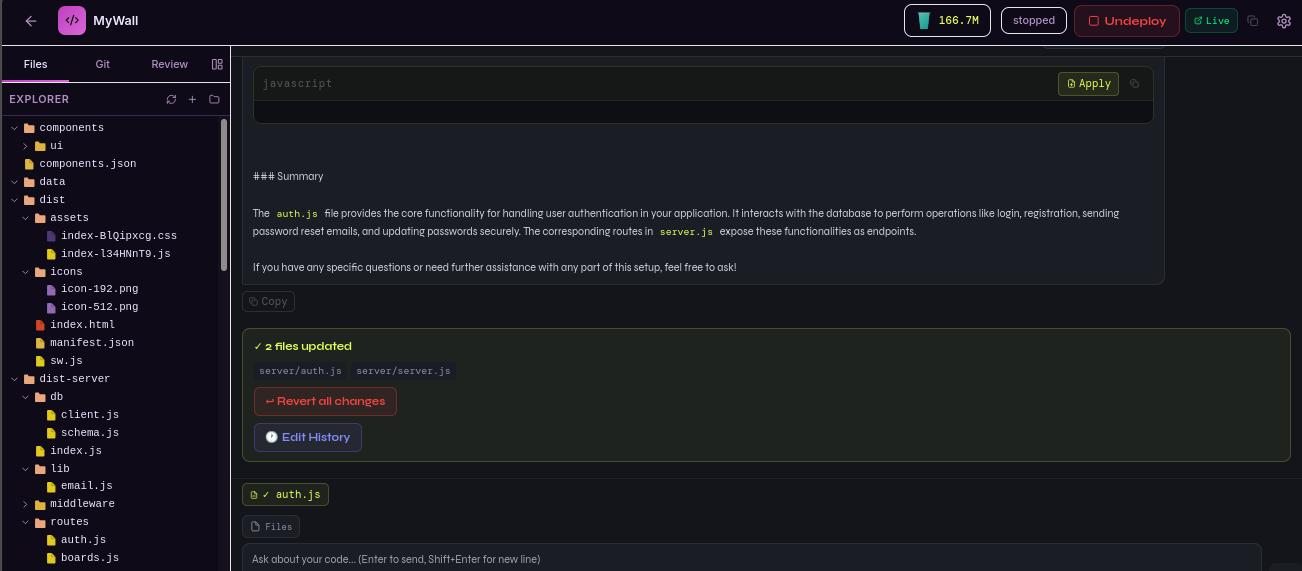
When the AI gives you code in a response, you will see a small Apply to [filename] button on the code block. Click it and the code is inserted directly into the correct file. No copying, no pasting, no finding the right place to put it.
This is what makes the chat feel less like a conversation and more like pair programming with a developer who types faster than anyone you have ever met.
Selecting Files for Context
By default the AI reads all your project files. But you can focus it on specific files using the Files button next to the chat input.
Click Files, select one or more files, and the AI will pay particular attention to those files when answering. Useful when you have a large project and want precise answers about a specific feature.
How It Works Under the Hood
When you send a message in the AI chat, FocusCloud:
- Reads your project files — it scans your codebase and selects the most relevant files based on your question
- Builds context — it includes those files along with your message
- Sends to AI — the request goes to FocusCloud’s own AI infrastructure, not to OpenAI or any third party
- Streams the response — you see the answer appear word by word in real time
- Tracks tokens — each exchange uses AI tokens from your monthly balance (visible in the top bar)
The critical point is step 3. Your code stays on FocusCloud’s servers. It never goes to external AI companies. For freelancers handling client code, agencies building proprietary software and enterprises with compliance requirements, this matters enormously.
Chat vs Vibe: What Is the Difference?
The AI Assistant has two modes. Understanding when to use each saves a lot of time.
Chat mode is for:
- Questions and explanations
- Debugging specific problems
- Writing individual functions or components
- Making targeted changes to existing code
- Understanding how something works
Vibe mode is for:
- Generating an entire app from scratch
- Adding a major new feature (a whole authentication system, a complete dashboard section)
- Rebuilding or restructuring large parts of your app
Think of Chat as talking to a developer sitting next to you. Think of Vibe as briefing a developer to go away and build something new and come back with the whole thing done.
Real Examples of What Users Ask
A freelancer building a client project:
“The client wants to add a loyalty points system. How would I add this to the existing users table and what routes would I need?”
The AI reads the existing schema, suggests the database changes, writes the migration, creates the routes and explains how the frontend should call them.
A founder without a technical background:
“I do not understand why the booking form only works sometimes. Can you look at it?”
The AI reads the booking form component, the API route it calls and the database handler. It finds a race condition in the async code and explains it in plain English before fixing it.
A developer onboarding to a new codebase:
“I just opened this project. Can you give me a tour of how it is structured?”
The AI reads the file tree, the main entry points, the database schema and the key routes. It gives a structured overview in under a minute — something that would take an hour of reading manually.
A student learning to code:
“Why does this function return undefined even though I can see the value in the console?”
The AI identifies a missing return statement and explains the concept of return values, why this is a common mistake and how to avoid it in future.
Tips for Better AI Conversations
Be specific about what you want. “Fix my app” is too broad. “The login button does nothing when clicked and there are no console errors” gives the AI something concrete to work with.
Mention the file or feature when you know it. “In the auth.js file, the forgot password route…” helps the AI focus on the right place immediately.
Ask follow-up questions. The AI remembers your conversation. If its first answer is not quite right, say “that did not work — here is what happened” and it adjusts.
Use it for learning, not just doing. Ask the AI to explain why a solution works, not just what the solution is. You will write better code faster over time.
Ask for alternatives. “Is there another way to do this?” often surfaces a simpler or more efficient approach you would not have thought of.
The Result: Fewer Hours Lost, More Apps Shipped
The developers and founders who use FocusCloud’s AI chat most effectively describe the same experience: problems that used to take hours now take minutes. Not because the AI is magic, but because having something that understands your specific code and answers specific questions is vastly more useful than anything general-purpose.
Your code is in the IDE. The AI is in the same IDE. Ask it anything.
Try it free at focuscloud.dev
FocusCloud Systems Inc. | support@focuscloud.dev | You Think it, We Create it.
Leave a Reply